MT5 indicators are the tools that run on a MetaTrader 5 chart and turn price into something you can read: a moving line, an oscillator, a set of levels, an arrow. MetaTrader 5 ships with a set of built-in indicators, and you can add custom ones as .ex5 or .mq5 files in the MQL5\Indicators folder. The built-ins cover most jobs. Custom tools are worth adding only when they answer a question the built-ins cannot.
You probably arrived here with a chart already open and a list of “best MT5 indicators” from a forum. This guide covers what MetaTrader 5 gives you out of the box, where custom files go, which built-ins earn a spot, and how to check a download before it touches a live account.
Updated September 2026: added three diagrams, a note on tick versus real volume, and a test-first order for the RelicusRoad tools.
Key Findings
- Two kinds: built-in indicators ship with MetaTrader 5; custom indicators arrive as .ex5 (compiled) or .mq5 (source) files.
- More room than MT4: 21 timeframes and a built-in set grouped into trend, oscillator, volume and Bill Williams tools.
- One folder: custom files go in MQL5\Indicators, opened from File > Open Data Folder.
- Test before trusting: check repainting, buffers and alert timing on any custom or paid tool.
What are MT5 indicators?
An MT5 indicator is a small program attached to a chart that calculates values from price, volume or time and draws them. MetaTrader 5 indicators come in two kinds: built-ins that ship with the platform, and custom indicators written in the MQL5 language. Indicators only draw and alert; they never place trades.
That last point trips people up. In MetaTrader 5 there are three kinds of programs you can attach to a chart:
- Indicators calculate and draw. They can raise an alert, but they cannot open or close a position.
- Expert Advisors (EAs) can trade. An EA can read an indicator’s values and act on them.
- Scripts run once and stop, for jobs like closing all orders.
The indicator is the only box with no line to the broker. A tool sold as an “indicator that trades for you” is really an EA, and it deserves EA-level scrutiny.
Custom indicators come as one of two file types. The MetaTrader 5 help on the data folder structure lists compiled files as .ex5 and source code as .mq5. An .ex5 file is ready to run, but you cannot read what it does. An .mq5 file is readable source that MetaEditor compiles into an .ex5. Paid indicators are almost always sold as .ex5 only, so the vendor keeps the code private.
What does MetaTrader 5 add over MT4 for indicators?
MetaTrader 5 gives indicators more timeframes, and a larger built-in set. MetaQuotes lists 21 timeframes, 38 built-in indicators and 44 analytical objects for MT5. MT4 has nine timeframes. The catch is that MT4 indicator files do not run on MT5.
Here is what changes in practice.
| Area | MT4 | MT5 |
|---|---|---|
| Timeframes | Nine: M1, M5, M15, M30, H1, H4, D1, W1, MN1 | 21, adding M2 to M20 steps, H2, H3, H6, H8 and H12 |
| Built-in tools | 30 indicators plus 23 objects | 38 indicators plus 44 objects |
| Indicator file | .ex4 / .mq4 | .ex5 / .mq5 |
| Language | MQL4 | MQL5 |
- MT4
- Nine: M1, M5, M15, M30, H1, H4, D1, W1, MN1
- MT5
- 21, adding M2 to M20 steps, H2, H3, H6, H8 and H12
- MT5
- 38 indicators plus 44 objects
- MT4
.ex4/.mq4- MT5
.ex5/.mq5
- MT4
- MQL4
- MT5
- MQL5
The extra timeframes matter more than they look. On MT4, a multi-timeframe tool that wants an H2 or H8 read has to rebuild those bars itself. On MT5 they exist natively, so an indicator can request them directly. That makes multi-timeframe dashboards cleaner to build and less likely to disagree with the chart you are looking at.
The file split is the part that causes support tickets. MQL4 and MQL5 are close cousins, but a compiled .ex4 will not load in MetaTrader 5. If you move from MT4, every custom tool needs its own MT5 build. Our comparison of MT5 with cTrader and DXtrade covers the platform-level differences in more depth.
Which built-in MT5 indicators are worth using?
The best MT5 indicators to start with are built-ins, one per job: a Moving Average or ADX for trend, RSI or MACD for momentum, ATR for volatility, and On Balance Volume for participation. MetaTrader 5 groups its built-ins into trend, oscillators, volume and Bill Williams categories.
The mistake is using several tools that do the same job. RSI, Stochastic and Williams %R all measure where the close sits inside a recent range. Put all three on a chart and they will agree most of the time, which feels like confirmation but is one vote counted three times. Our guide to the best trading indicators for MT4, MT5 and TradingView goes deeper on why overlap is the real enemy.
| Job | Built-in to start with | What it answers | Where MT5 files it |
|---|---|---|---|
| Direction | Moving Average | Which side to favor | Trend |
| Trend strength | ADX | Is there a trend worth trading | Trend |
| Trailing reference | Parabolic SAR or Ichimoku | Where the trend would be broken | Trend |
| Momentum | RSI or MACD | Is the push speeding up or fading | Oscillators |
| Volatility | ATR | How far price normally moves | Oscillators |
| Stretch from the mean | Bollinger Bands | Is price far from its recent average | Trend |
| Participation | On Balance Volume | Is volume backing the move | Volume |
- Built-in to start with
- Moving Average
- What it answers
- Which side to favor
- Where MT5 files it
- Trend
- Built-in to start with
- ADX
- What it answers
- Is there a trend worth trading
- Where MT5 files it
- Trend
- Built-in to start with
- Parabolic SAR or Ichimoku
- What it answers
- Where the trend would be broken
- Where MT5 files it
- Trend
- Built-in to start with
- RSI or MACD
- What it answers
- Is the push speeding up or fading
- Where MT5 files it
- Oscillators
- Built-in to start with
- ATR
- What it answers
- How far price normally moves
- Where MT5 files it
- Oscillators
- Built-in to start with
- Bollinger Bands
- What it answers
- Is price far from its recent average
- Where MT5 files it
- Trend
- Built-in to start with
- On Balance Volume
- What it answers
- Is volume backing the move
- Where MT5 files it
- Volume
One caution on that last row. MT5 volume tools can run on tick volume or real volume, and the choice is an input on the indicator. Spot forex and most CFDs have no central exchange, so the broker’s feed carries tick volume only: a count of price updates, not contracts traded. Real volume shows up on exchange-traded symbols such as futures and stocks. Check which one your symbol offers before you read anything into a volume line.
The MT5 trend indicator question
If you only add one MT5 trend indicator, make it a Moving Average and pair it with ADX. The average tells you direction. The ADX indicator tells you whether that direction has enough force to trade or whether the market is chopping sideways. That pairing covers the two questions every trend setup needs answered.
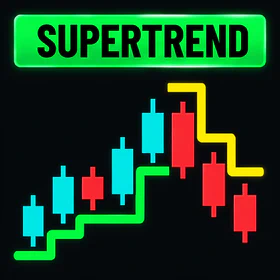
Parabolic SAR and Ichimoku are useful as trailing references, but both whipsaw in ranges. The classic SuperTrend is not a built-in on MetaTrader 5, which is why it is one of the most common custom downloads. Our SuperTrend indicator guide explains how the ATR band works and why it only flips on a close.
Momentum and volatility
Pick RSI or MACD, not both, unless you use them for different jobs. Our MACD vs RSI comparison shows where they overlap and where they differ. ATR sits in the Oscillators group on MT5, even though most traders think of it as a volatility tool. It is the one built-in almost everyone should keep, because it sizes stops to the market rather than to a round number. The ATR guide walks through that.
Where do MT5 indicators live, and how do you add a custom one?
Custom indicators live in the MQL5\Indicators folder inside the platform’s data folder. MetaQuotes’ help on running programs names that folder and says to open it with File > Open Data Folder. Copy the file there, refresh the Navigator, and drag the indicator onto a chart.
Here is the full sequence for a file you downloaded:
- In MetaTrader 5, click File > Open Data Folder. A file explorer window opens.
- Open MQL5, then Indicators. You can create a subfolder here to keep a vendor’s files together.
- Copy the
.ex5file (or.mq5file) into that folder. - Back in MetaTrader 5, open the Navigator (Ctrl+N), right-click Indicators and choose Refresh. Restarting the platform works too.
- Drag the indicator from the Navigator onto a chart, set the inputs, and tick Allow DLL imports only if the vendor explains why it needs them.
Every stop on that path is inside the data folder. None of it touches the install folder.
If you have a .mq5 source file, it has to be compiled first. Press F4 to open MetaEditor, open the file, and press F7 to compile it. The .ex5 it produces appears in the same folder.
The steps on MT4 look almost the same, with MQL4 in place of MQL5; see how to add indicators to MT4 if you run both platforms.
How do you judge a custom or paid MT5 indicator?
Judge custom indicators on MT5 by three tests before you pay or trade them: does the signal repaint after the candle closes, does the tool expose its values as buffers an EA can read, and do its alerts fire once at bar close. A good-looking screenshot proves none of those.
Our piece on the risks of custom indicators covers the wider problem. Here are the checks that take ten minutes.
Does it repaint?
Repainting means an indicator changes signals it already drew. The history looks perfect because it was rewritten with hindsight. To test it, run the indicator in the Strategy Tester’s visual mode and watch the most recent bars. If arrows appear, vanish, or slide to a better candle as new bars print, it repaints.
The top row is what the tester exposes: an arrow you would have traded, missing from the finished chart.
A second test works on a live chart: screenshot the last 20 signals, wait a few hours, and compare. Our non-repaint MT5 indicator guide covers the tester method step by step, and how repainting fakes backtests shows why a repainting tool can look profitable in history and fail live.
Does it expose buffers?
An indicator’s buffers are the arrays of values it draws. Open the Data Window with Ctrl+D and hover over a bar. A well-built indicator lists each of its lines or signals there with a value. If the Data Window shows nothing, the tool is probably drawing chart objects instead of buffers, and an EA will not be able to read it. That matters the day you want to automate or backtest the signal.
Are the alerts usable?
MT5 indicators can raise a popup alert, a sound, an email, or a push notification to the MetaTrader mobile app. Check two things. First, that the alert fires on the closed bar, not mid-candle, or it will ping you for signals that later disappear. Second, that each alert fires once, not on every tick while the condition holds.
Where can you download MT5 indicators safely?
The safest MT5 indicators download sources are inside the platform: the MQL5 Market for paid tools and the Code Base for free ones. MetaQuotes states that every Market product has a free trial version you can test first, and Market purchases install themselves, so you never copy files by hand.
Your options, from safest to riskiest:
- MQL5 Market. Paid and free tools, tried in the Strategy Tester before you buy, installed and updated by the platform. Reviews and version history are public.
- MQL5 Code Base. Free indicators, usually with
.mq5source you can read before you compile. - The vendor’s own site. Fine when the vendor is identifiable, explains what the tool does, and offers support.
- Free download sites for “premium” indicators. Avoid them. Many offer cracked
.ex5files of paid tools. You cannot read compiled code, so you cannot see what it does. The copy never updates, and it may be an old build with bugs the author fixed long ago.
Also walk away from any vendor who promises a win rate or “no losing trades.” An indicator cannot know that. Our guide to forex indicators covers what indicators can and cannot do across platforms.
RelicusRoad indicators on MT5
Hold these to the same standard as any other custom download: run the three tests first, on a demo account, before one of them goes near real money. RelicusRoad publishes MT5 builds of its single-purpose indicators, each with its own product page. A few examples by job:
- Trend: RelicusRoad SuperTrend is the classic ATR trailing line that flips only on a close through the band. It exists for the reason covered above: SuperTrend is not a built-in on MetaTrader 5.
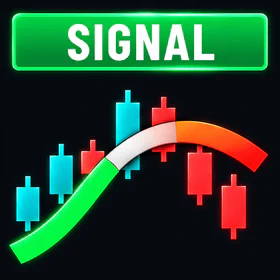
- Targets and stops: RelicusRoad is a seven-line channel: a weighted equilibrium line with three volatility levels above and three below, labeled as reference points for targets and stops.
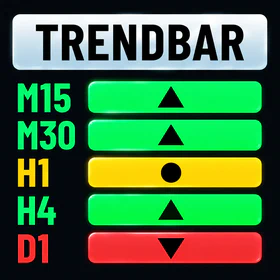
- Structure: RelicusRoad Support Resistance grades support and resistance zones, and RelicusRoad Multi Timeframe Trendbar shows the trend on nine timeframes in one row.
Start with one, not all of them. Look at the jobs table above, find the job your chart has no tool for, and test the single indicator that fills it. If you later want the full set working together on MT4, MT5 and TradingView, RelicusRoad Pro bundles them. No indicator fixes position sizing, and none makes a plan for you.
Frequently asked questions
What are MT5 indicators? MT5 indicators are programs that run on a MetaTrader 5 chart and turn price and volume into lines, histograms, arrows or levels. Some ship with the platform as built-ins, such as Moving Average, RSI and ATR. Others are custom indicators written in MQL5 and added as .ex5 or .mq5 files. Indicators only draw and alert. They do not place trades; that is the job of an Expert Advisor.
Can I use MT4 indicators on MT5? Not directly. MT4 indicators are compiled .ex4 files written in MQL4, and MetaTrader 5 only runs .ex5 files compiled from MQL5. The two languages are close enough that a developer can port an indicator, but a copied .ex4 file will not appear in the MT5 Navigator. Ask the vendor for an MT5 build, or look for the MT5 version of the same tool on the MQL5 Market.
Where do I put custom indicators in MT5? In the MQL5\Indicators folder of the platform’s data folder. Open it from File > Open Data Folder, copy the .ex5 or .mq5 file into MQL5\Indicators, then right-click Indicators in the Navigator and choose Refresh, or restart the platform. A .mq5 source file has to be compiled in MetaEditor first: open it with F4, then press F7 to compile.
What is the best MT5 trend indicator? There is no single best one, but a few built-ins cover most needs. A Moving Average shows direction, ADX shows whether a trend is strong enough to trade, and Parabolic SAR or Ichimoku give a trailing reference. Pick one direction tool and one strength filter rather than stacking several that agree by design. If you want a trailing trend line that only flips on a close, a SuperTrend indicator does that job.
Is it safe to download MT5 indicators from free sites? It depends on the source. The MQL5 Market and Code Base are built into MetaTrader 5, install files for you, and let you try paid products before buying. Sites that hand out cracked copies of paid .ex5 files are a different matter: you cannot see what the compiled code does, you get no updates, and you are using a copy the author never licensed. Stick to the official sources or the vendor’s own site.
Written for RelicusRoad by RelicusDigital.com.
Keep going on this topic
The Best Trading Indicators for MT4, MT5 and TradingView in 2026
An honest breakdown of trading indicators for MT4, MT5 and TradingView: which categories add real edge, which are noise, and how many you actually need.
- Market facilitation index: is the volume actually moving price?
- Non-Repaint Forex Indicators: What 'Non-Repaint' Actually Means (and How to Verify It)
- How to add indicators to MT4 (and MT5): step-by-step guide
- MT4 crosshair: measure pips, bars and price in seconds
- Forex Indicators Explained: Choose Fewer, Test Better
- Forex Indicator Suites: What to Look For Before You Buy
- The Best Gold Trading Indicator for XAUUSD: What Actually Holds Up
- MACD: It's Not Just a Crossover Signal
- MACD vs RSI: Differences, Signals and When to Use Each
- RSI Divergence: The Early Warning System
- Best RSI Settings for Scalping: 2, 9, 14 or 21?
- Stochastic Oscillator for Forex: A Range Map You Can Trust
- The Stochastic RSI Indicator: Speed Without the Whipsaw
- The Bollinger Squeeze: Catching the Explosion
- Moving Average Crossover Strategy: Rules and Whipsaw Filters
- Parabolic SAR: The Idiot-Proof Trailing Stop